
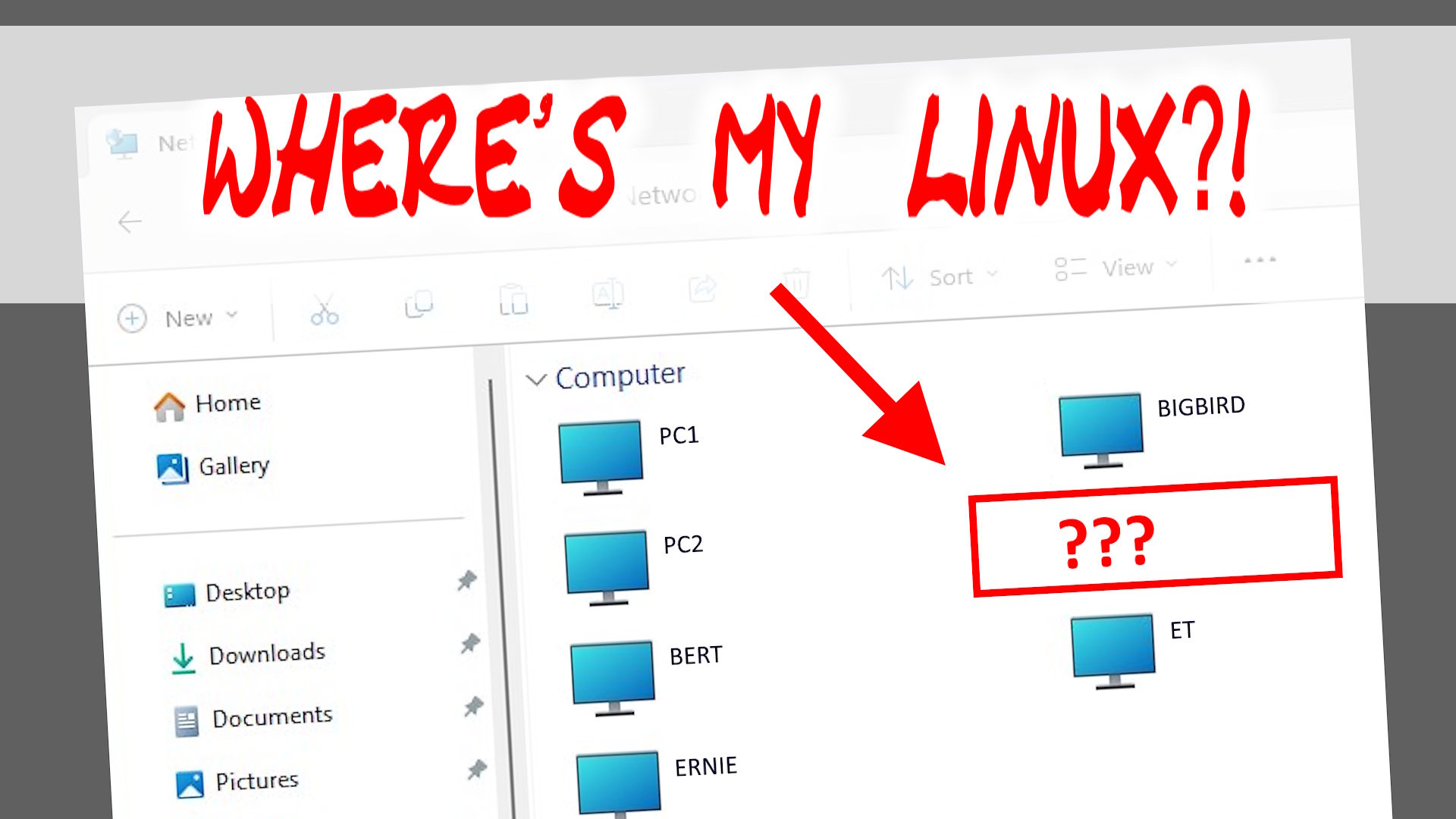
 Ah, Windows networking… It sucks.
Chances are, you’ve got some linuxy gizmos like a NAS or local linux server for media or whatever.
And chances are, it does NOT show up in Network in the file Explorer.
Fortunately, this is the easiest thing in the world to fix – don’t faint!
Behold: WSDD!
Back in the old days, we had things like NetBIOS and Samba v1 and Master Browsers that managed the local network (sort of).
These days, everything has changed!
We still have Samba for sharing files, but the only way to access these shared folders in Windows 10 or 11 is to type out the “address” like so:
\\FILESERVER\Video\
That’s no good.
You could just map a network drive, and problem solved. But it sure would be nice to get your linux box to appear in file Explorer like other Windows machines…
This is where WSDD comes in. WS-Discovery, or Web Services Dynamic Discovery, is a multicast protocol you can install that runs alongside Samba. It uses UDP packets on the address 239.255.255.250. All modern Windows machines do this out of the box, but your linuxy server/NAS/whatever may not.
How to fix it?
Easy: Install wsdd!
This varies based on linux flavor, so you may need to search for the appropriate package name for your particular flavor of linux. For Ubuntu you just do:
- sudo apt install wsdd (for Ubuntu 22.04)
- sudo apt install wsdd-server (for Ubuntu 24.04+)
Then just make sure the necessary ports are unblocked:
- sudo ufw allow 3702/udp
- sudo ufw allow 5357/tcp
That’s it!
If you are using a workgroup name other than WORKGROUP, you can edit /etc/default/wsdd and change the empty params to this:
WSDD_PARAMS="-w YOUR_WORKGROUP_NAME"
Then just do systemctl restart wsdd.
Aaand you’re done. Open Explorer and go check out the Network section.
Ta-DA! Your linuxy box now appears.


Recent Comments