
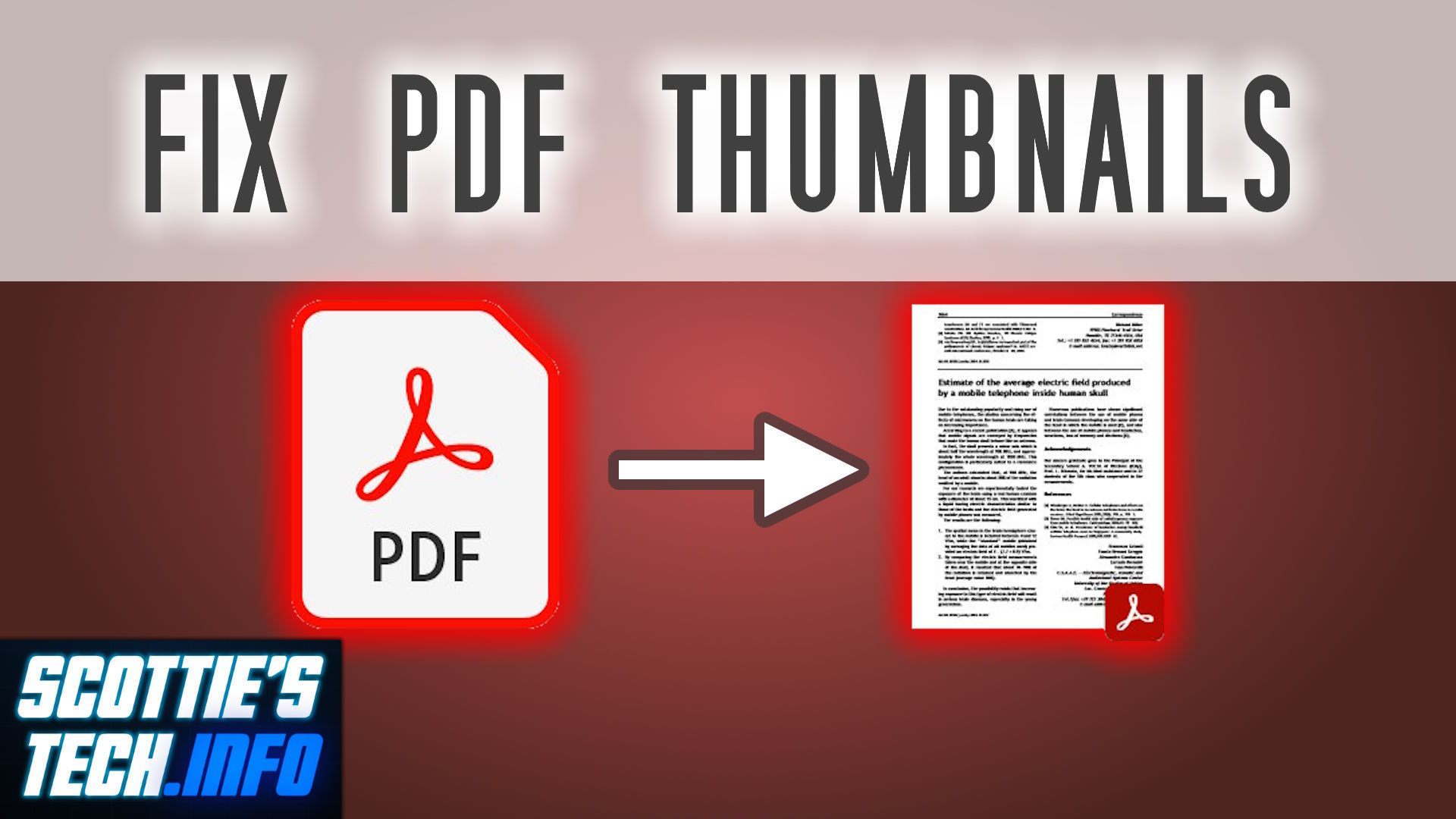
 Who doesn't love PDFs? Unfortunately, far too often you won't see a thumbnail of a PDF file's first page.
Instead, you'll see a generic PDF icon.
This has been a known issue for YEARS, and it boggles my mind that even Adobe can't manage to fix the problem.
But now, they don't have to; Microsoft has done it for them! Check out the video version, or see written instructions below! YouTube: https://youtu.be/pcucTOHzrBA You can also watch the video on: Twitter/X, Bitchute, or Rumble.
How to fix PDF Thumbnails for good
You're gonna love this. You need to download and install PowerToys for Windows - from Microsoft. The installation page is here, but the easiest way is to get it with 1 click for free from the Microsoft Store. Once installed, run PowerToys. Go into the settings. Click File Management on the left:  Next, click File Explorer Add-ons:
 Under Preview Pane, you can enable the PDF toggle if you often use the Preview Pane. Otherwise, carry on!
 In any case, scroll down to the Thumbnail icon Preview section, and enable the toggle for PDF files:
 You're done! Just close PowerToys, and go check out a PDF file on your desktop or in some folder somewhere. You should see a preview like this:
 Wasn't that easy?
Note that since PowerToys is handilng PDF thumbnail icons, you can install and use whatever PDF reader you want. PowerToys will override that PDF reader's thumbnail generator. And there you have it: after YEARS of nonsense, you have working PDF thumbnails. Don't forget to check out all the other cool tools that PowerToys gives you. Whatever you don't use, just disable it in the settings. But there are so many features in PowerToys, it's virtually guaranteed you'll find something else in there to increase productivity and make your life easier!!


This didn’t work for me on windows 11 Home. I don’t use OneDrive, I set Acrobat to allow preview, and I did reboot. It also doesn’t work for my alternate PDF software. Any ideas?